There is a lot of noise in the market about Windows Protected Print mode, Windows Ready Print, and other workstation-level printing concerns. Many vendors are telling you that there is nothing to worry about, that nothing is changing. Others are telling you that everything is changing, and that you must be ready in six months. As with so many other things in our world, both of these are true, and neither are completely true. The key to making sure you understand timelines and facts are found at the source – Microsoft.
My intent with this article is not to rile your emotions and give you sleepless nights. It is to reassure you that if you are an LRS customer, whatever happens, you are covered. The reason for my confidence is the release of LRS Driverless Print in our Cloud-Enabled (VPSX/MFPsecure) products, and soon in our Cloud-Native products.
So first, let me give you the basic story. Windows 24H2 introduced Windows Protected Print mode. This was created as a way of reducing or eliminating the vulnerabilities created by the Windows print environment. The core problem was that Microsoft allowed non-Microsoft code to run at high levels of authority and have access to system transport mechanisms to function. This non-Microsoft code came in the form of print drivers. Every printer manufacturer used these drivers to make their own products more useful. Bad players also found them useful to plant malware and spread it around the network. (Remember PrintNightmare?)
Windows 24H2 introduced Windows Protected Print mode (WPP) to end this very old problem with Microsoft printing. This ties into Windows Ready Print; WPP is available as either a selection in the Printers and Scanners screen or can be turned on by Group Policy. When turned on, WPP removes all printers that have traditional drivers assigned to them, and it hides the drivers themselves. It also demotes the Windows Spool from SYSTEM level to the level of the user. This takes the teeth out of the mechanisms that malware like PrintNightmare exploited, and ends the running of third party code in the Microsoft OS level. The other thing it probably does is defeat all printing from any workstation it touches. As a result, most Windows printing is broken.
So maybe the title to this article makes more sense now. How does LRS repair Windows printing? Well, if you are using the LRS Personal Print Manager (PPM) on your workstation, then everything is good. If you turned on WPP by accident and are not ready for it yet, you can simply turn it off again, and printers will reappear.
More importantly, you can use PPM as the mechanism to migrate to a fully WPP-compliant environment that uses purely driverless print. Best of all, this is not something that is coming; it is something that is here today, and that customers are using today. Here’s how it works.
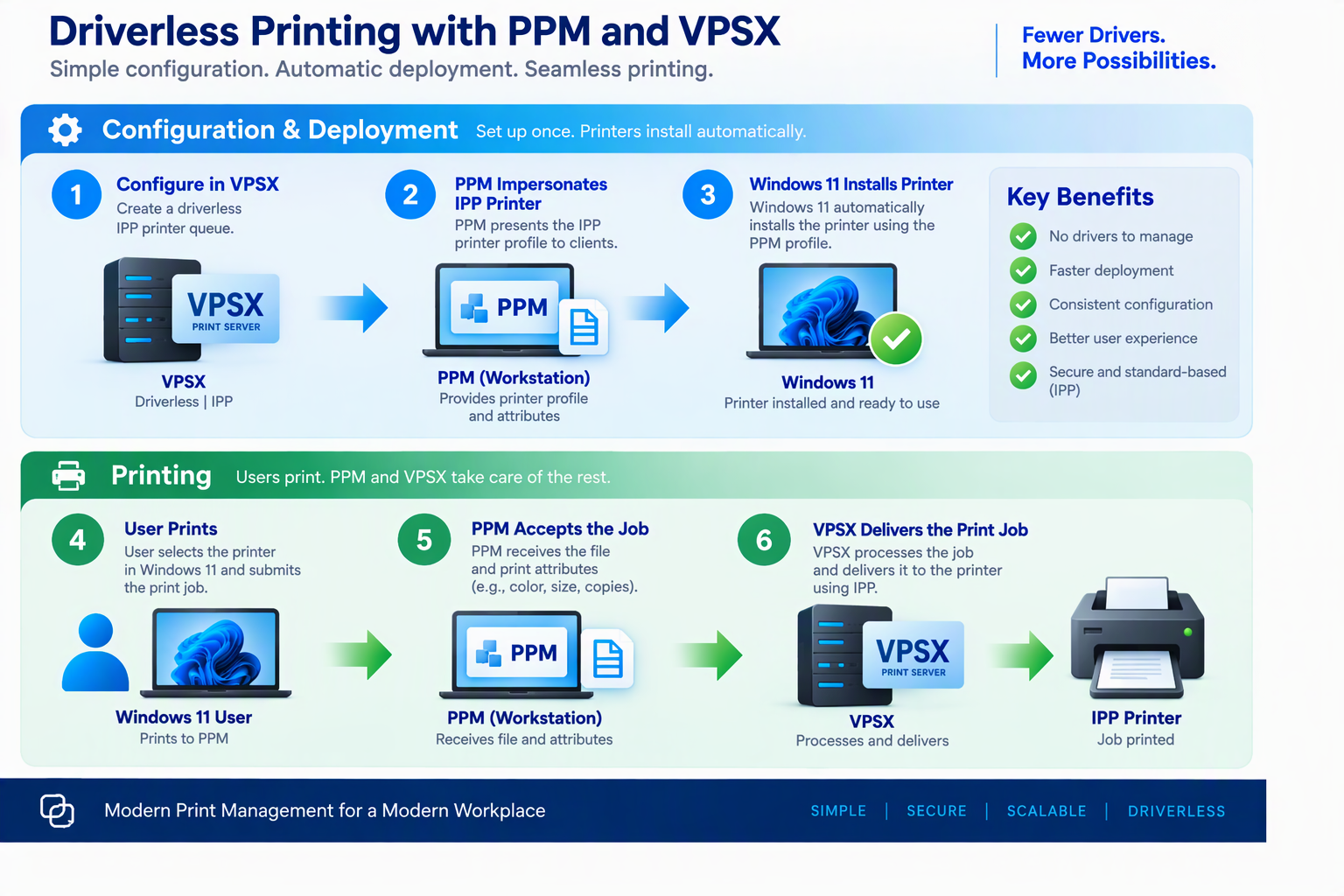
First, PPM acts as an IPP INFRA printer. This is a virtual printer that runs in the PPM process that can talk to Windows.
When you define a printer to VPSX (or soon, define it to LRS Cloud Print and Scan), you can build a driverless profile. A driverless profile serves to tell VPSX and PPM what attributes a printer can support, and also which attributes the company wants the printer to do. Like custom driver configurations, you can default it to duplex, or monochrome, or most any finishing option. Because there is no driver on the workstation to provide this information, it also acts as a mechanism to allow a user to select more complex things like trays, staplers, and other finishing options. The driverless profile is assigned to the VPSX printer in the same way that drivers are today.
In fact, you can assign both a driver and a driverless profile to the VPSX printer. That way, when it gets selected for install by the user in PPM, there is a failover option. If PPM cannot create this as a driverless printer, it can failover to the driver and allow the user to move forward.
Ok, so I realize I’ve gotten a little off track. First, PPM acts as an IPP printer. It has been defined to Windows, and Windows can talk to it like an IPP printer. At print time, Windows asks PPM what attributes are available using IPP. After PPM tells it which are available, Windows presents the attribute screen to the user to select what they want to do.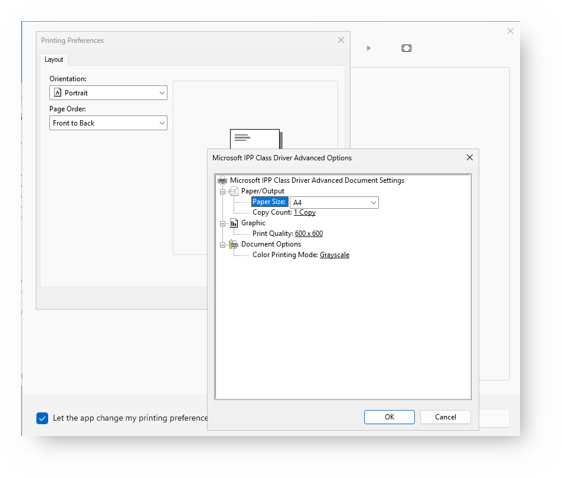
Once all settings are selected, Windows sends the PDF of the job to VPSX along with the attributes in an IPP header. If the printer that PPM has defined is within network line-of-sight, and happens to also be Mopria ready, VPSX can send it along. If it is not Mopria ready, or cannot print PDF and handle the IPP attributes, the job can be forwarded to VPSX. VPSX can convert the PDF and attributes to a standard printer-ready data stream and send it on to the device via any method needed (e.g., port 9100 printing). Alternatively, if it is a label printer, it can convert the job to ZPL and send it on. The possibilities are endless!
Even though we have the toolset to make this happen, we still recommend working with us to build a solid and definite migration strategy with the end goal of turning WPP on non-disruptively. Your LRS System Engineer is well versed in this and can help. You can contact them directly or via this page, and we will be happy to assist.